Add a milestone and track its result
A milestone marks a game change: an update, advertising, a new price or artwork.
How to use it
- Connected games are checked in the background at most once per 15 minutes per game; queueing and Roblox may delay checks. The first snapshot establishes a baseline; later updates create milestones dated by Roblox. This is not a complete release history or a changelog.
- Open Milestones and notes in the game menu or Milestones on its card: both open the dedicated list under the game heading. Other pages no longer repeat the list. Creating a milestone from a chart point remains available.
- Enter a title, date and description. Choose a type, expected effect and result for each item.
- On a chart, enable Milestones and the types you need. Select a marker to read its details; Go to milestones opens that game’s dedicated page. Milestone-type selections for a product apply to all products in its group.
Files and links
Useful article: full launch plan (RU)Useful article: full launch plan (EN)Concise launch checklist (RU)Concise launch checklist (EN)Advice and practical context
Milestone is annotation, not proof
A milestone links a known change to charts and records the expected effect. It helps choose an analysis window, but it does not prove the change caused a metric movement. Parallel releases, advertising, and seasonality remain possible explanations.
Evaluating outcome
Choose the metric and horizon first, then compare complete windows and segments. Describe post-milestone growth as temporal association. Do not mark success from one peak hour or select whichever metric improved after seeing results.
Store a milestone result as an observation with value, range, and limitation, such as “the seven-complete-day mean is X higher with source held stable.” This is more useful than “worked” and allows revision when new evidence arrives.
Technical detailsCalculations, permissions and behavior
Automatic game update milestones
MARPLA checks connected games' public data in the background without an open page or a private analytics key. Each game is checked at most once per 15 minutes; queueing and Roblox limits may delay checks. The first successful snapshot establishes a baseline without inventing history.
A later Roblox update timestamp creates an Update milestone at that timestamp; detection time is stored separately. Name, description, icon, images, genre and server size are also tracked. Repeated checks do not duplicate a milestone.
Roblox failures preserve the previous snapshot. The public update timestamp provides no changelog and cannot guarantee detection of intermediate releases between checks. Events appear in Milestones and on charts with the Update type enabled.
Milestones directly on a chart
Add milestone in the list header creates a record manually. To tie it to an observation exactly, click the chart point itself or its small hit area: clicks between points create nothing, while MARPLA carries the selected observation's exact date and time into the form. Date and title are shared, while one milestone may contain up to twenty items, each with its own type, text, expected effect and result.
Expected effect offers Playtime, Returning players, More revenue, Better conversion or Other. Name a custom effect to store it with the milestone and reuse it in this game. Enter a free-form explanation below the category; existing descriptions remain unchanged.
In the popup the category is the heading and the explanation appears beneath it. The milestone card stays above the chart value tooltip. Price change is built in; after choosing Other, a custom type can be named and the saved name appears in that game's type list.
Line breaks are preserved exactly. Uploaded images appear as thumbnails immediately and can be removed or dragged into the required order; that order is preserved in the hover card. Hovering the dot on a milestone line shows the full title, description, type, and time without truncation, plus every item, effect and image; the word “Manual” and a separate editing hint are not displayed.
Clicking a manual milestone still opens it for editing. Save remains visible and turns green only after required fields are complete or an existing milestone has actually changed. Automatic milestones can also be deleted in the table by users who manage the game integration; deleted records do not return during synchronization.
New automatic milestones show Before → After for the name, description, server limit, genre and media order, with both images for icon changes. Identical manual entries without attachments collapse into one row with a button to expand repeats; original records are preserved. Manual dates are user-entered; Home changes use the synchronization observation time.
Retrying the same form does not create another milestone. Old records show only saved evidence. A Roblox update date change does not imply an icon change; the public API does not disclose in-game changes.
A manual milestone can also be edited or deleted in the table; open charts refresh their markers immediately after saving. For a launch, separately record the CCU target period, total spending limit, new-player source and D1/D7 maturity dates. Plan windows are team working targets.
Experience Beta excludes a game from Home recommendations; assess paid and organic traffic separately. If a blended rate falls, check source and country shares. Useful articles: the full launch plan and concise checklist are linked below.
Every item in the milestone popup
Hover over a milestone dot. The nearest popup edge stays 50 px from the pointer. Positioning uses the actual text and image dimensions: short cards stay close and long cards retain the gap at the bottom of the viewport.
Near the viewport edge it flips to the other side; on narrow screens it opens above or below with internal scrolling, never covering the pointer. Text and effects appear exactly as entered, including line breaks, blank lines and indentation. Interface translation never rewrites user text.
The popup includes every item: type, full multiline text, its own effect and a compact result — a green check, red cross or grey dash. Scroll inside a long card; the chart no longer clips its list. Images retain their saved order.
The card stays open while the pointer is inside; the corner close button or Escape dismisses it. With a keyboard, select a marker with Tab, then press Arrow Down to focus and scroll the popup.
Milestone filters, offsets and colours
The selected milestone types are remembered in this browser separately for each game and chart. Reloading, changing the date range and reopening Milestones do not reset the selection. All milestones selects every type; clearing it hides all markers.
New types are not automatically enabled in a custom selection. D1, D7 and D30 retention charts shift milestone dots and dashed lines forward by 1, 7 and 30 days respectively, including breakdown charts. Only the display moves: the original stored and editable date stays unchanged, and the tooltip shows both dates.
Shifted markers are always blue. On other charts, all Yes items produce green, all No items red, and all unset items grey. Any combination of different results, including unset items, produces yellow.
Automatic milestones without a result are grey. Both the dot and dashed line use the outcome colour. The P50–P90 band remains visible without a separate caption above the chart.
Each item's effect and result
Type and expected effect have no duplicate input. Other opens a new name input; after leaving the field or pressing Enter, the name remains only in the menu and is reusable in other items. Images in the editor, table and popup retain their full original aspect ratio without cropping.
Edit a milestone, enter a separate effect for each item, and choose Yes — worked or No — did not work. The Result column shows a green check or red cross with a label. Choose Not set to clear the outcome.
Existing and new items without a selected result stay neutral: an unset outcome is not a failure. Each item, its effect and result share one table row, including when text wraps across multiple lines; effects are never concatenated. Chart hover cards also show a separate effect and outcome icon for each item.
The date, title and images remain shared by the milestone. Press Save to persist changes across reopening.
Open a game's milestones directly
Select Milestones on a game card in My games to open that game's list without loading every analytics chart. Add or edit items, effects, results and images according to your permissions. All my games in the header and My games in the sidebar open your game list, clear search and leave the selected game analytics.
Reloading keeps the list open. The direct link retains the selected game after a page reload. Acquisition source comparison has one heading and guide link, a calendar beside the period controls, and Combined sources first among the line buttons.
Duplicate source tiles are removed; their values remain available in chart tooltips. This chart's Milestones button opens the same type filter used by other charts. Milestones and notes in the game menu opens a dedicated list under the shared heading, with Milestones and Notes tabs inside.
Other pages no longer repeat the list. Go to milestones in a chart tooltip opens this page for the same game. Chart-based creation and editing remain available.
Useful articles: examples and decisions
The guide covers the steps in the service. These articles explain the metrics, examples, techniques and how to evaluate results.
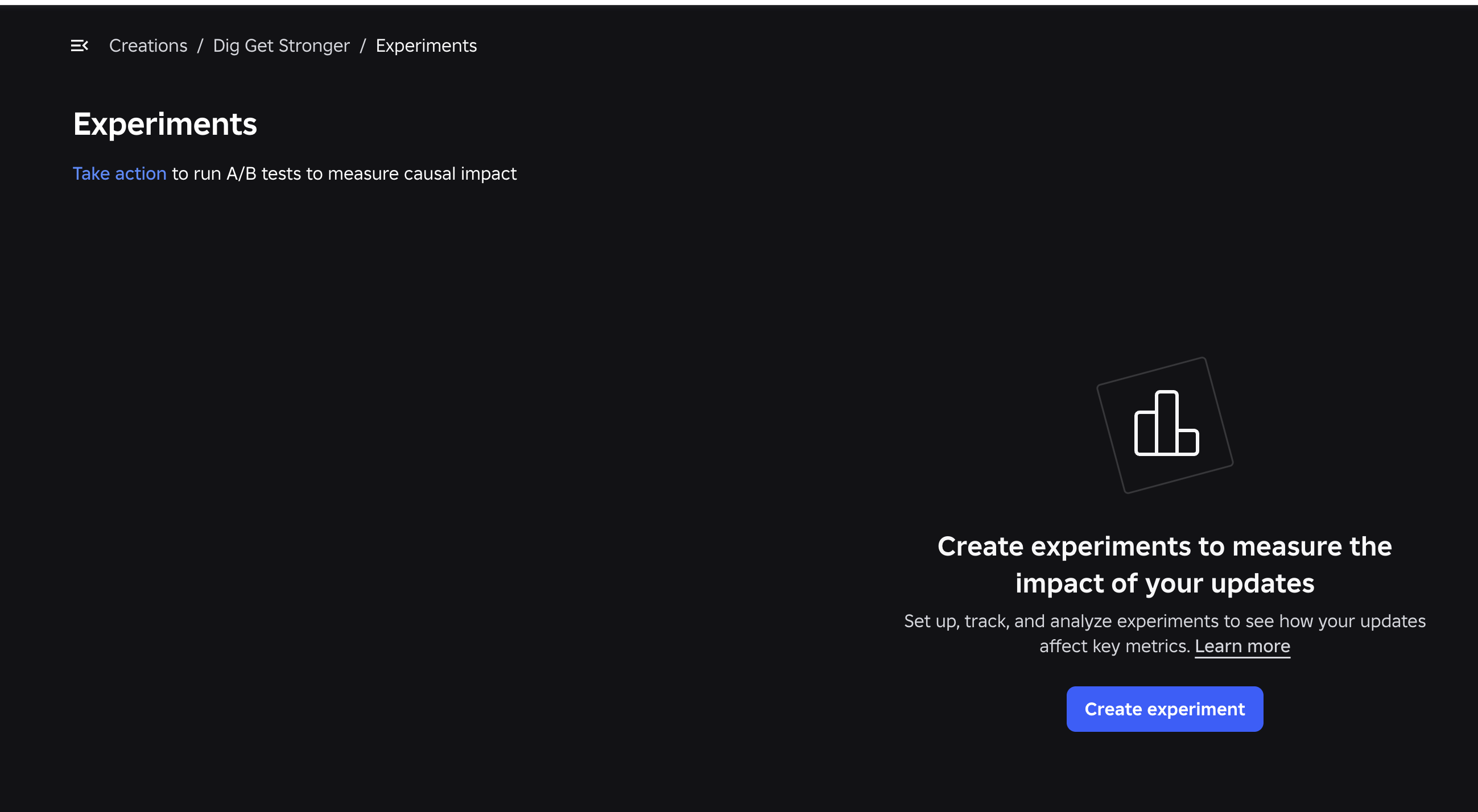
Roblox Experiments: how to run A/B tests and improve your game
Set up Roblox Experiments, select metrics and evaluate A/B tests: 8 game test ideas, creator case studies, interpretation pitfalls and an experiment template.
Read article →
Launching a Roblox Game in 2026: A Growth Plan to 100 CCU and Beyond
How to prepare and launch a Roblox game: soft launch, Home, an advertising test, creators, retention, and stop rules. A 14-day plan and checklist.
Read article →
How to evaluate a Roblox update without claiming false causality
Plan the measurement, align cohorts and windows, inspect confounders, and reserve causal language for controlled experiments.
Read article →