Find and evaluate an asset
Choose one of five types, open the dedicated asset page and review its preview, rating and discussion.
How to use it
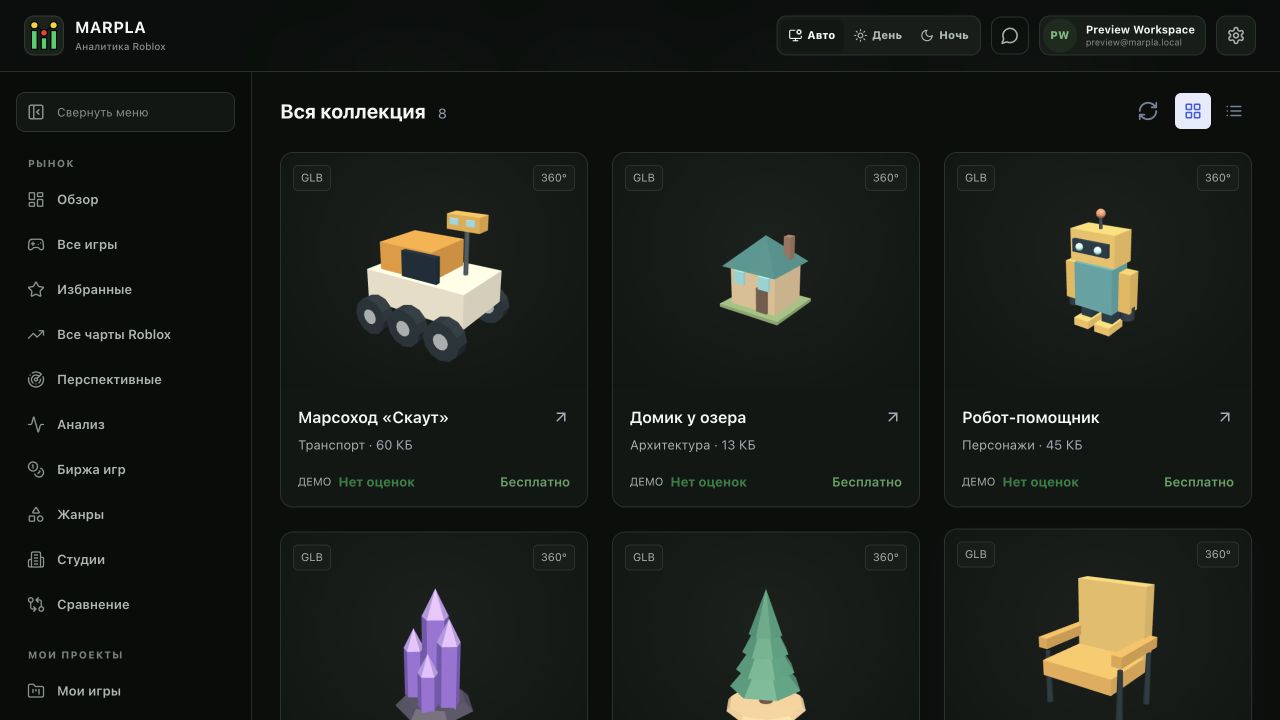
- Open /assets and choose 3D models, Sounds, Mechanics, Builds (locations) or Games. Use search and filters; each card opens /assets/[id].
- On the page, check the description, author, license and preview: 360° for 3D, audio playback for sounds, or images and package contents for other types.
- Choose one positive or negative vote. The single score is the rounded share of positive votes; a dash appears before anyone votes.
- Post a comment or reply. You can edit or delete your own messages, and the workspace owner can remove another person’s comment.
Advice and practical context
Inspect before downloading
Start by choosing the material type: model, sound, mechanic, build or game. A location needs a clear scene inventory and engine compatibility information; a mechanic needs dependencies and installation instructions. Rotating a model helps inspect its shape but does not test scripts. The service does not execute archives or Roblox files. Compare the description with the images, format and license. If an important characteristic is missing, ask about it in the comments before using the asset.
Interpret the percentage
The rating is the share of positive votes among all votes. Eight likes and two dislikes produce eighty percent. Without votes, no score is calculated. One positive vote and a hundred votes with the same percentage offer different amounts of evidence. Consider the vote count and discussion when deciding. Ratings do not certify archive safety, author ownership or compatibility with your game. Demonstration models are separately labelled examples for preview and download.
Technical detailsCalculations, permissions and behavior
Five types and dedicated pages
The /assets catalog combines five types: 3D models, Sounds, Mechanics, Builds (locations) and Games. Search checks the title, description, author and tags. Filters narrow the type, category, format and free or paid items.
Each card opens a stable /assets/[id] page; downloads do not start from the catalog grid or table.
Description and preview
Accessible asset cards arrive with the page. Initial covers load first; the remaining covers load as they approach the viewport, roughly one screen ahead. After the server returns the assets you can access, covers are restored from the browser cache without another image request.
The cache is account-scoped, retained for up to seven days, limited to 60 MB and 100 images, and cleared on sign-out. Replacing an image changes its version so the new cover is downloaded. The first visit requires loading.
In the Images tab, browse with the side arrows, thumbnails, or the left and right arrow keys while the gallery is focused. The counter identifies the selected image; the last image wraps to the first. If the browser cannot start WebGL, a viewer of 24 prepared angles opens automatically: drag left or right or use the arrow keys, and use the slider to enlarge the image.
This mode needs no WebGL and shows a horizontal turn rather than free 3D tilt. The connected Mac prepares angles for existing uploads too. Until they are ready, an image and a 3D retry remain available.
The same asset permissions protect the angles. Supported files receive an automatic 3D preview; the card does not show a separate manual preview upload form. In the 3D viewer, Full screen expands the model.
Use the cross in the top-right corner or Escape to exit. The asset page shows its author, description, tags, format, size, license and delivery terms. 3D preview and thumbnail backgrounds follow the selected appearance theme. 3D assets use a 360° viewer with orbit and zoom; sounds use audio playback; mechanics, builds and games use suitable images, previews and package details. A preview helps evaluate an asset but does not prove compatibility with every project, so verify the format and license before use.
Automatic 3D viewing
Upload BLEND, GLB, FBX, OBJ, STL or a Roblox RBXM, RBXMX, RBXL or RBXLX file: the service prepares a GLB viewer model and cover while preserving the original. The title comes from the filename; the author is optional. Textures must be embedded in ordinary 3D models: other files on your computer are not uploaded automatically.
Preparing a Roblox file requires access to its meshes and textures. If private source resources are unavailable, automatic processing fails: the original remains stored and the owner can retry after fixing access. Scripts and game logic are never run and are not included in the preview.
Processing runs in a queue on the connected Mac. Jobs wait while it is sleeping or offline; the page updates when processing finishes. Failures preserve the original and the owner can retry.
Generated GLB is limited to 32 MiB and covers to 2 MiB; complex models may need simplification. Custom previews and images are preserved. ZIP archives and 3MF files remain downloadable without automatic conversion.
The full viewer model reaches the browser and can be saved, including for paid assets. You can add your own simplified GLB up to 8 MiB for paid models. Audio uses a separate player.
Rating and comments
The rating and Like and Dislike buttons sit below the download button. Comments appear below the viewer and description. Each participant with access can choose one positive or negative vote, or clear it.
The single score is the rounded share of positive votes among all votes; with no votes, a dash appears instead of 0%. Comments support replies and collapsible threads. Authors edit and delete their own comments, while the workspace owner may delete another person’s comment; deleted text remains as a marker so replies keep their context.
Useful articles: examples and decisions
The guide covers the steps in the service. These articles explain the metrics, examples, techniques and how to evaluate results.
Action essentials and individual concepts (3)