
Launch & promotion
MARPLA Assets: store models, music and game mechanics
Save a useful model, music track or game mechanic once and reuse it in later projects. MARPLA Assets lets you build a personal library of reusable components, preview work with your team, share files with selected people and download available game materials. Each package has a page with a description, preview and usage terms, so you can find it without searching old conversations.
Full guide
Choose by outcome, not by extension
Open /assets and select 3D models, Sounds, Mechanics, Builds, or Games. A model normally solves a visual need; sounds include music and effects; a mechanic contains scripts and dependencies; a build represents a location or scene set; a game can be a complete place file or archive. A ZIP extension says nothing about its purpose, so inspect the description and inventory.
Search covers title, description, author and tags. The Source, Price, Format, and Order filters narrow the list; every card opens /assets/[id]. Use the import checklist to define requirements before choosing a file.
Open the Assets library to start choosing components. Use the step-by-step guide to search and evaluate a package.
Build a library that is easy to reuse
Select Upload asset, choose the type and author, then add the original file, cover, description, tags and license. For example, name a reusable component “Key door — v2” and explain its contents, required objects and test procedure. A month later you can find the working version, and a teammate can understand how to connect it. Follow the upload and access instructions for the exact steps.
For a mechanic or a complete gameplay block, include a short README, a connection example and a dependency list in the ZIP. Describe the scene contents for a location, and duration and usage terms for music. Keep the editable source separate from a lightweight preview. Put a version in the title or description: the library does not replace source-code version control.
Inspect the asset page before downloading
Compare the description, author, format, size, license, tags and images. A 3D asset can be orbited and zoomed; sound uses an audio player; other types rely on images and package details. A preview shows appearance, but it does not execute scripts, unpack an archive, or prove compatibility with your architecture.
The rating is the rounded positive share of votes, not a security certificate. Consider the vote count and discussion. If the page omits the Roblox Studio version, dependencies, script placement or license terms, ask the author before copying anything into a production project.
Download the original and preserve its context
A free original is delivered from the asset page with Download {FORMAT} when your account has access. A zero price does not make the file public; authorization is a separate decision. MARPLA currently provides no internal checkout or paid-file fulfillment. A legacy card can open the author’s external HTTPS purchase page; without one, the page states that buying and selling are unavailable.
Store the asset title, author, license, download date and instructions beside the file. If the package changes, those notes identify the version you tested. Do not treat a paid asset’s 3D preview as protected source: all preview bytes reach the browser.
Use the appropriate Roblox Studio workflow
For a conventional 3D model, Roblox documents this Studio flow: File → Import, choose a supported file, review settings, warnings and errors, then select Import. The Importer page lists FBX, OBJ and glTF meshes. If the MARPLA original is BLEND, STL, 3MF or another unsupported format, export it from a suitable editor first and preserve textures, scale, axes and pivot.
RBXM, RBXMX, RBXL, RBXLX and ZIP need a different review. Unpack archives away from the production place, read the README, and inspect Scripts, ModuleScripts, RemoteEvents, DataStore access, purchases and external HTTP calls. The model, audio and mechanic checklist separates these paths.
Verify the result, not the presence of a file
Import is complete only when the intended behavior is observable. For a model, check scale, pivot, collisions, Anchored, materials, textures and part count. For music, check experience permission, moderation, volume, looping and positional versus background playback. For a mechanic, check dependencies, server validation of RemoteEvents, data persistence, mobile controls and a clean Output window.
Test in a copy or test place first, then exercise both Client and Server. A Studio save, a published place and a verified live game are separate states. Write the expected result and rollback method before moving the asset into the main project.
Keep MARPLA and Roblox limits separate
MARPLA accepts an original up to 512 MiB, a separate preview up to 8 MiB and up to three final PNG/JPG/WebP images of 2 MiB each. A workspace is limited to 500 assets and 2 GiB. BLEND, GLB, FBX, OBJ and STL can enter the connected processing service for a GLB preview and cover; jobs wait while the worker sleeps. ZIP, 3MF and Roblox files remain stored without automatic conversion.
Roblox applies its own rules after download. For example, custom audio must be one MP3/OGG/WAV/FLAC stream under 20 MB and seven minutes with a sample rate no higher than 48 kHz; rights, moderation and usage permission also apply. MARPLA’s larger upload ceiling does not override the destination platform’s lower limit.
Conditional example: music plus a scripted door
Conditional example. A team chooses an OGG track and a ZIP containing a door mechanic. In MARPLA, it checks the license, author and instructions, downloads both originals, and records their versions. It imports the track through Asset Manager, waits for moderation and grants the experience permission. It unpacks the ZIP in a separate test place and reviews the server script, RemoteEvent and required CollectionService tags.
The team then tests the door with two clients: the server decides whether it opens, repeated requests create no duplicates, the mobile control works, and the music does not start twice. Only after those observations does it move the components into the main game. This illustrates a process; it does not describe a specific listed asset.
Primary sources
Put this into practice in MARPLA
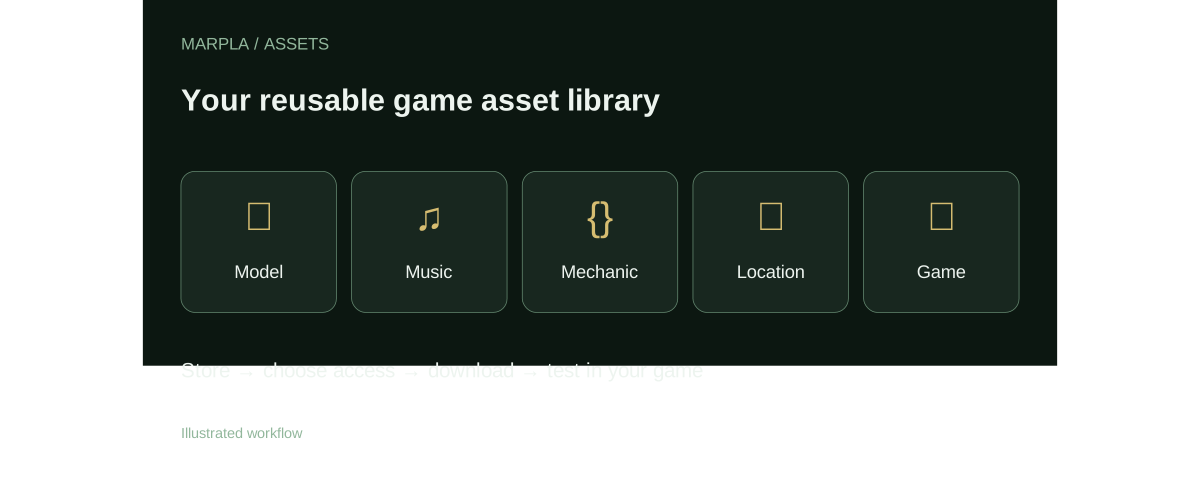
Find a suitable asset, review its page and download the available original. For your own files, add a description, license and audience, then follow the guide to test the asset in your game.
- Find and evaluate an assetChoose one of five types, open the dedicated asset page and review its preview, rating and discussion.Step-by-step guide →
- Upload an asset and configure accessUpload a file, edit its card, set a price and choose recipients.Step-by-step guide →
- Download and add to a gameBring a model, music track or ready-made mechanic into a test project and validate it before release.Step-by-step guide →
Continue exploring
More on this topic →
MARPLA assets: a short plan from selection to test
A concise workflow for models, music, mechanics, locations and games stored in MARPLA.
Read article
Sharing assets in MARPLA: workspace, recipients, groups and links
The exact MARPLA access modes and the limits of secret links, personal groups and community-authored files.
Read article
Import checklist: models, music, mechanics and game blocks
Download from MARPLA, inspect the package and apply it in Roblox Studio without assuming automatic installation.
Read article
Discussion0
Loading comments…