Upload an asset and configure access
Upload a file, edit its card, set a price and choose recipients.
How to use it
- Choose your account or a community as author. Drop a cover on the left and the main file up to 512 MiB on the right. Position the image in the 13:10 frame, adjust zoom and apply the crop. Advanced options accept a separate preview up to 8 MiB and no more than three PNG, JPG or WebP images: sources up to 20 MiB and cropped output up to 2 MiB. Add the type, description, tags and license. New files default to private; the form can select workspace access.
- For your own account, choose All or Selected people and groups. Add users and Link access are beside this selector. Community assets are available to teammates with Download assets permission in a connected game. In the latter mode, select several users, then click Save all changes. Asset recipients and group memberships save together; for link-only access, leave the recipient list empty and create a secret URL.
- Create a group using the dashed grid card. Group checkboxes update instantly; Save all changes applies them together with selected recipients. Revoke a link to end link access; the old URL will stop working.
- Select Edit on the asset card to change its title, add or remove images and set a USD price (0 means free). Purchasing is not connected yet. Asset deletion is at the bottom of the access section.
Advice and practical context
Prepare the package
Put related files into an archive and explain its contents. For a mechanic, specify script locations, dependencies and a verification procedure in a test place. Exclude secret keys and production player data. The main file is limited to 512 MiB. Large archives upload in chunks with a progress indicator. Form values remain available after an error so you can retry. A separate preview can be eight MiB. Add up to three images of two MiB each. Use a reduced preview for paid material because the browser receives all preview bytes.
Choose recipients
Individual access suits a one-off handoff. A personal group works for your own collection with a common audience: adding a member gives access to associated assets. A secret link can be forwarded, so revoke the old link when its audience changes. Revocation prevents future server delivery but cannot remove copies already downloaded. Paid originals cannot currently be downloaded: sales, payment and fulfillment are not connected. Previously configured external purchase links may remain available.
Technical detailsCalculations, permissions and behavior
Upload limits
The main asset file can be up to 512 MiB. Upload progress is visible; cancellation preserves the form. A separate preview can be up to 8 MiB.
You may add up to three PNG, JPG or WebP images: sources up to 20 MiB and cropped output up to 2 MiB each. Before saving, choose the asset type and provide its title, author, description, tags, license and access settings. Deleting an asset requires confirmation and removes its files, votes and discussion.
Cropping images
Adding images to a new or existing asset opens a 13:10 frame matching the catalog card. The image automatically fills the frame without stretching its proportions. Drag it and adjust the zoom slider; arrow keys also move the crop.
Apply each selected image. Cancel keeps the previous images. Choose up to three PNG, JPG or WebP files, up to 20 MiB, 32 megapixels and 12,000 pixels per side each; the service prepares a 1300 × 1000 pixel crop under 2 MiB.
Then save the asset or the card changes.
Editing an asset
The owner can select Edit on the asset page to change the title, add or remove images (up to three), choose free downloads or set a price in US dollars. Purchasing and payments are not available yet. Save the changes in the editor.
Asset deletion is at the bottom of the access section and requires confirmation.
File access and personal groups
Changing access mode, people and groups only changes the draft. Use Save at the bottom right of the access panel to apply everything; Cancel restores saved state. On an asset page choose All (members of the author’s workspace) or selected people and groups.
A free price does not make a file public: only authorized recipients download it for free. Add users lets you search by name or email and filter by game team. The list combines active members of your accessible teams across workspaces.
To add another service user, enter their complete account email and choose Add by email. Select several people in succession: the list stays open and another click clears a selection. Additions and removals for the asset and groups stay in a draft.
Save all changes applies them in one request; Cancel changes restores saved membership. Access remains unchanged until saved. Errors preserve the draft.
Selected people appear as compact chips; the cross marks a direct grant for removal. Membership in an assigned group can still provide access. Group checkboxes respond immediately and save together with selected people.
Click the dashed card in the grid, enter a name and create a group. Groups appear as compact cards in multiple columns; even a single group does not stretch across the entire section. The access settings button on a card opens its members, name and assigned assets in a separate panel below the grid.
Choose members from the same team directory or add them by email. Group membership changes apply to all assigned assets using selected-recipient access. Manage groups from My groups and access in the catalog too.
Deleting a group requires confirmation and preserves its files. Link access is a dropdown beside the access selector: anyone with an active secret link can download that one free file without signing in. Revoke it to stop access.
For link-only access, choose selected recipients and leave people and groups empty.
Free downloads and pricing
Set a license and select recipients in the access section for free assets. Set a US dollar price for paid assets. Sales, payments and purchase fulfillment are not connected yet, so the paid original cannot be downloaded.
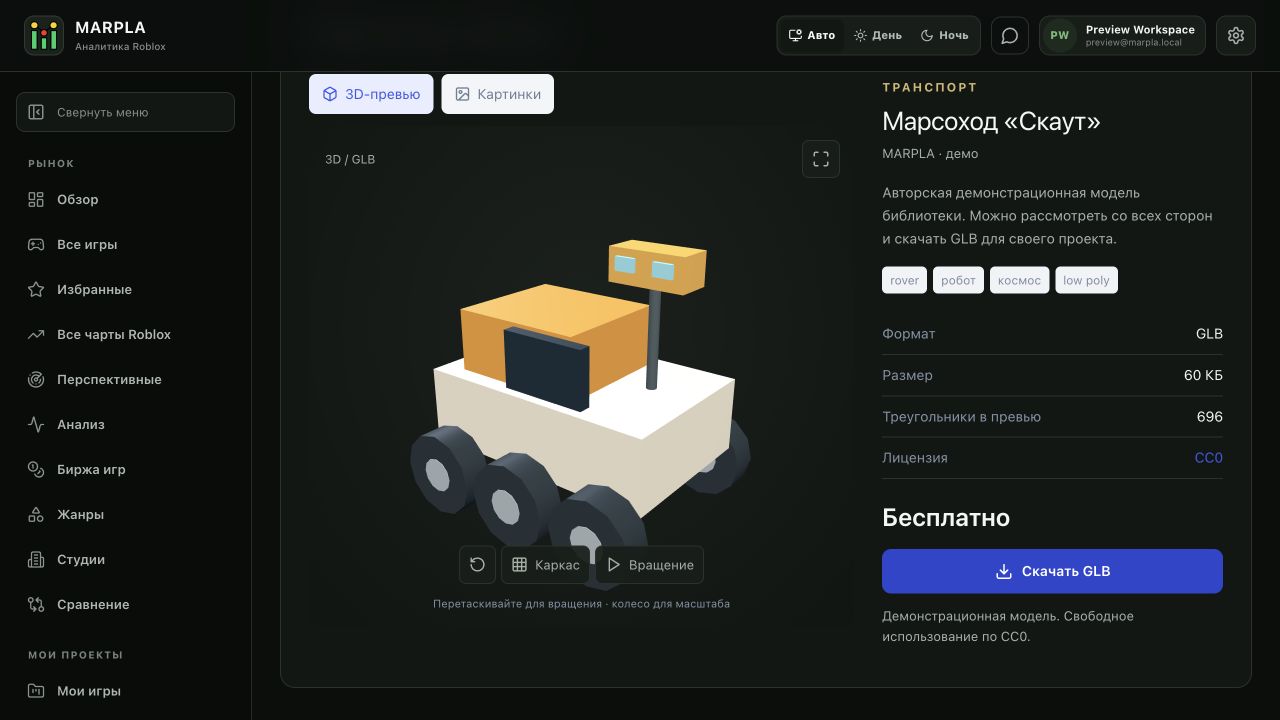
Previously configured external purchase links remain available. A 3D preview is delivered to the browser as demonstration material.
Useful articles: examples and decisions
The guide covers the steps in the service. These articles explain the metrics, examples, techniques and how to evaluate results.

Action essentials and individual concepts (3)